RingCentral Source Connector
This connector captures data from RingCentral into Estuary collections.
Supported Data Resources
The following data resources are supported:
| Resource | API Endpoint | Mode | Documentation |
|---|---|---|---|
| extensions | /account/~/extension | Full Refresh | List Extensions |
| internal_contacts | /account/~/directory/entries | Full Refresh | Search Company Directory |
| external_contacts | /account/~/extension/~/address-book/contact | Full Refresh | List Contacts |
| user_call_log | /account/~/extension/~/call-log | Incremental | List User Call Log |
| messages | /account/~/extension/~/message-store | Incremental | List Messages |
By default, each resource is mapped to a Estuary collection through a separate binding.
Prerequisites
You'll need the following to set up the RingCentral source connector:
-
A RingCentral JWT Auth Application: Create one at the RingCentral Developer Console. When creating the app, select "JWT auth flow" as the authentication method.
-
Client ID and Client Secret: These are provided when you create your JWT Auth application.
-
JWT Credential: Generate a JWT credential at My Credentials in the RingCentral Developer Console. Make sure to authorize the JWT for your app.
-
Required OAuth Scopes: Your app must have the following scopes enabled depending on which resources you want to capture:
Resource Required Scope extensions ReadAccountsinternal_contacts ReadAccountsexternal_contacts ReadContactsuser_call_log ReadCallLogmessages ReadMessages
Authentication Setup
This section walks through creating a RingCentral JWT Auth application and generating JWT credentials.
Part 1: Create a JWT Auth Application
Step 1: Navigate to Apps
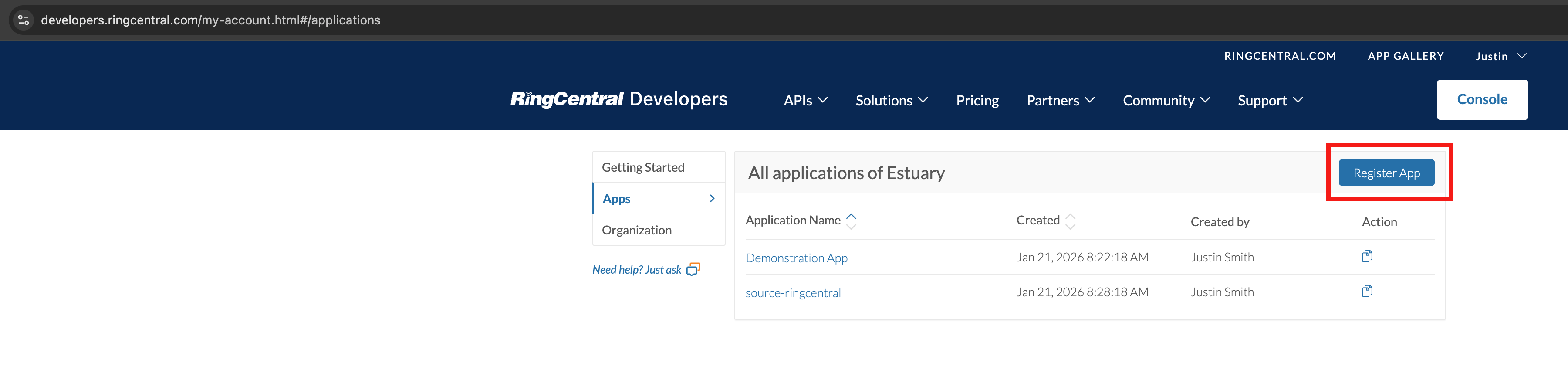
Go to the RingCentral Developer Console and click the Register App button in the top right.
Step 2: Select App Type
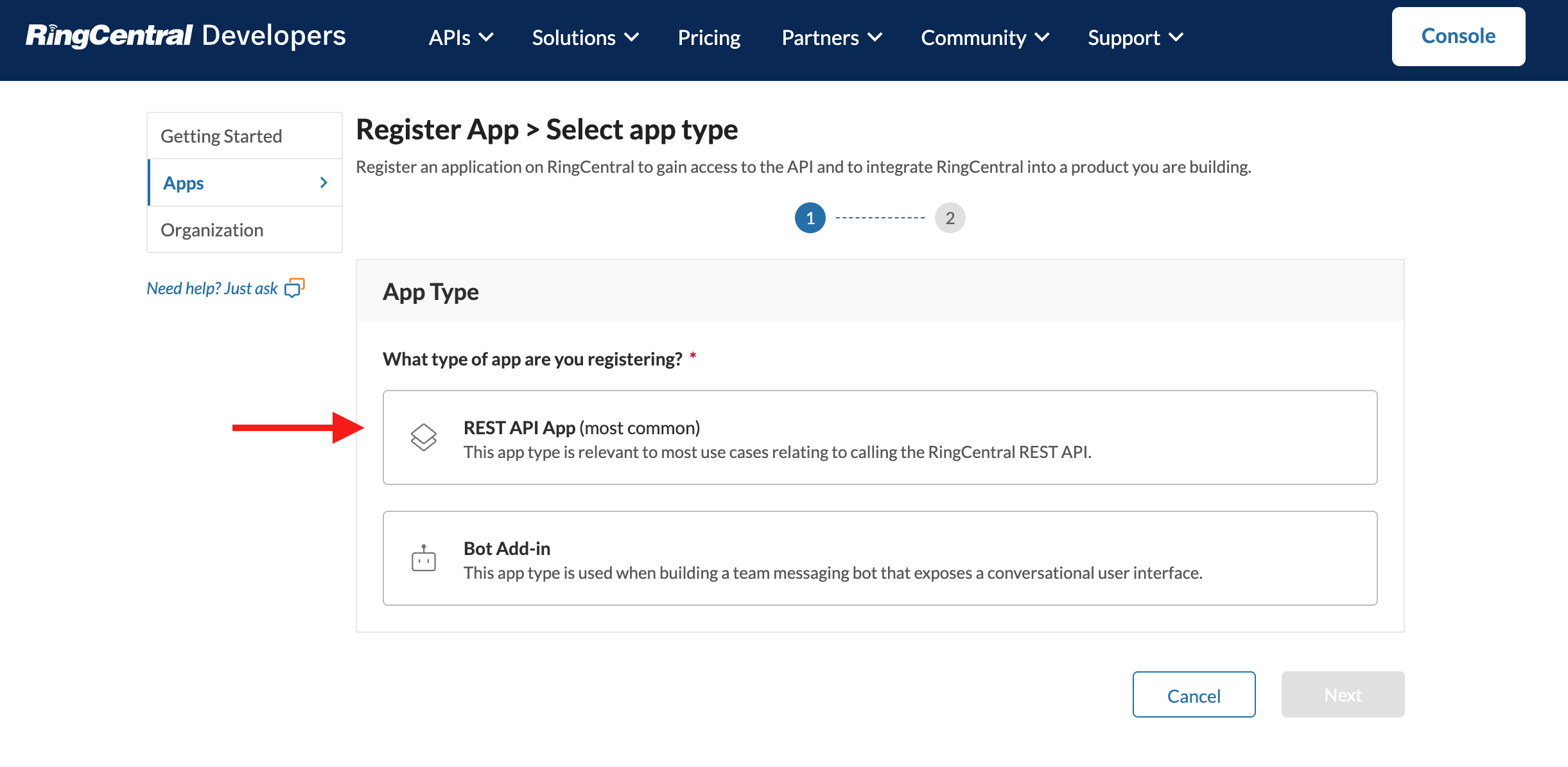
Select REST API App (most common) as the app type and click Next.
Step 3: Configure App Settings
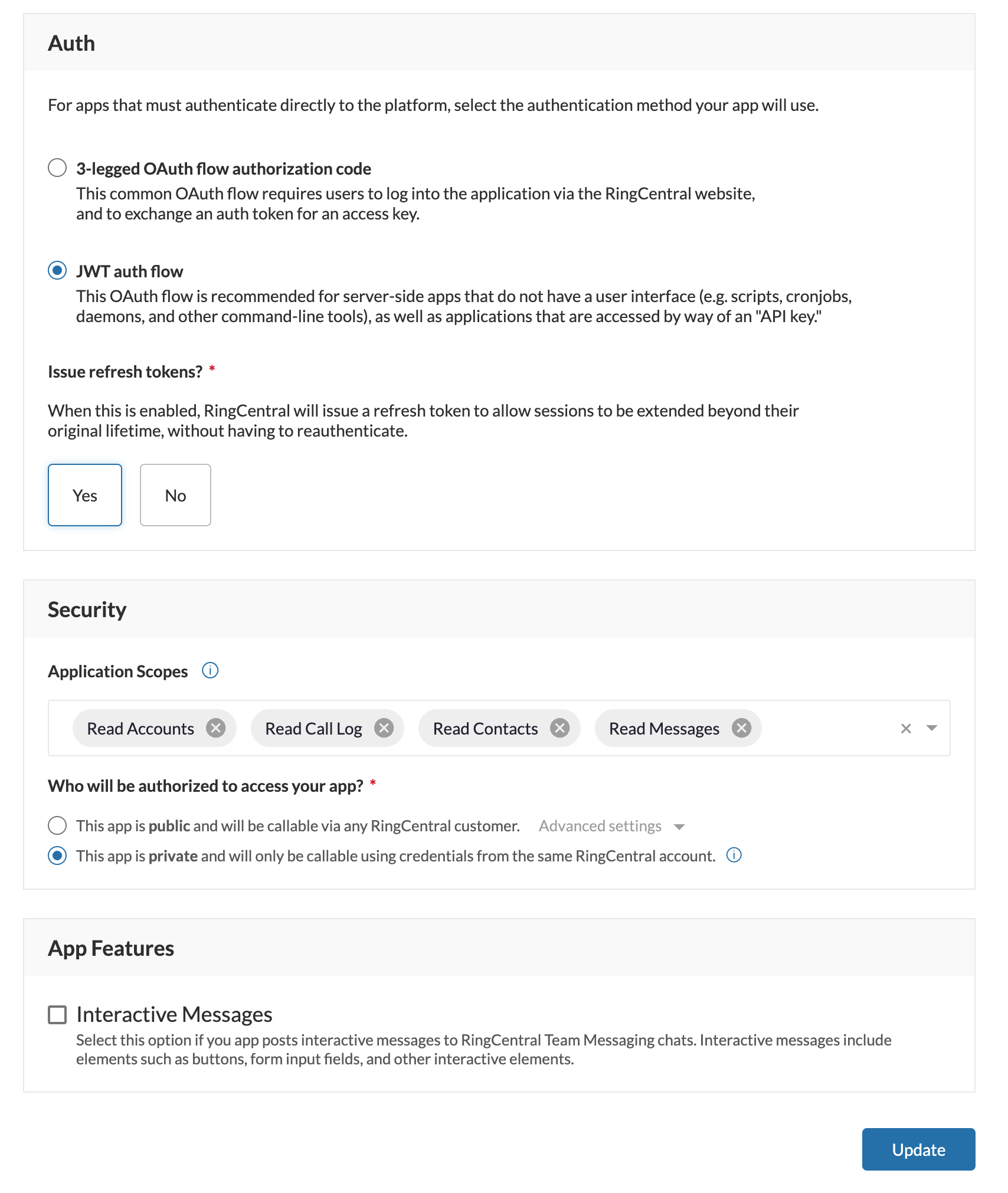
Fill out the application settings:
-
App Gallery promotion: Select No (unless you plan to publish the app publicly).
-
App Card: Enter a display name and optional summary for your app.
-
Auth: Select JWT auth flow. This is the recommended authentication method for server-side applications, scripts, and automated data pipelines.
-
Issue refresh tokens: Select Yes to allow the connector to maintain long-running sessions.
-
Application Scopes: Add the scopes your app needs based on the resources you want to capture:
ReadAccounts- for extensions and internal_contactsReadContacts- for external_contactsReadCallLog- for user_call_logReadMessages- for messages
-
App access: Select This app is private to restrict access to your RingCentral account only.
-
Click Create to finish creating the app.
Step 5: Copy Your Credentials
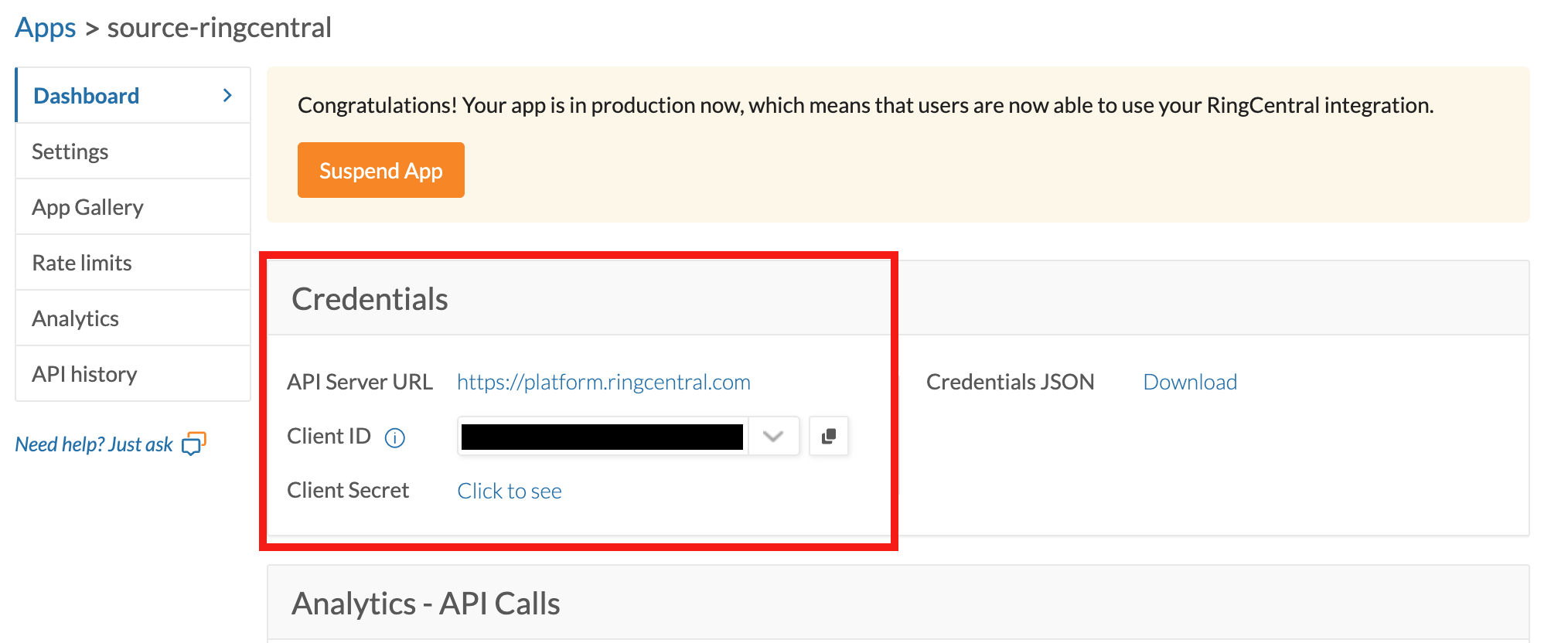
After the app is created, you'll see the app dashboard. Copy the Client ID and Client Secret from the Credentials section. You'll need these to configure the connector.
Part 2: Create a JWT Credential
Step 1: Navigate to My Credentials
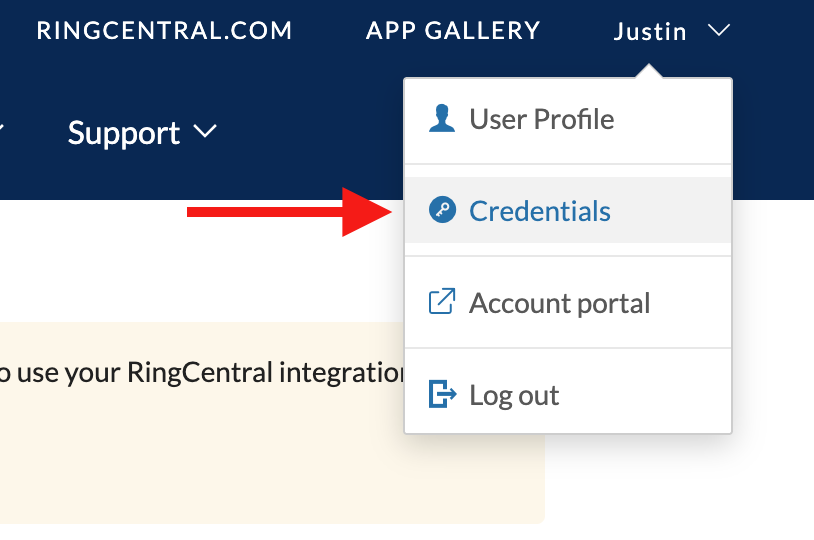
Click on your username in the top right corner and select Credentials from the dropdown menu.
Step 2: Create New JWT
On the My Credentials page, click the Create JWT button.
Step 3: Configure JWT Settings
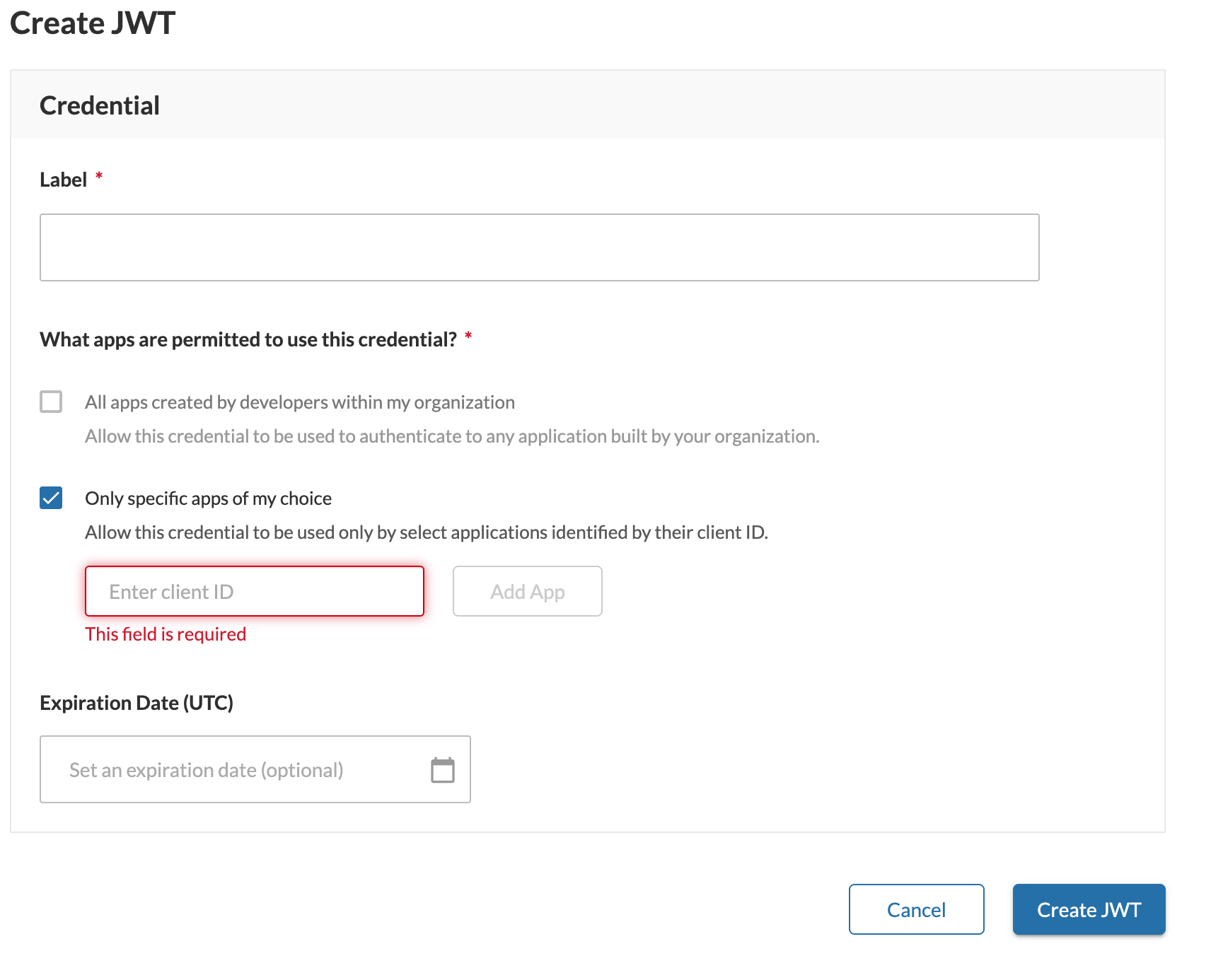
Fill out the JWT creation form:
-
Label: Enter a descriptive name for this credential (e.g., "Estuary Connector").
-
What apps are permitted to use this credential?: Select Only specific apps of my choice, then enter the Client ID of the app you created in Part 1 and click Add App.
-
Expiration Date: Optionally set an expiration date, or leave blank for no expiration.
-
Click Create JWT to generate the credential.
Step 4: Copy the JWT
After creation, copy the generated JWT credential. This is a long string that starts with eyJ.... Store this securely - you won't be able to view it again.
You now have all three credentials needed to configure the connector:
- Client ID (from the app dashboard)
- Client Secret (from the app dashboard)
- JWT (from the credentials page)
Configuration
You configure connectors either in the Estuary web app, or by directly editing the catalog specification file. See connectors to learn more about using connectors. The values and specification sample below provide configuration details specific to the RingCentral source connector.
Properties
Endpoint
| Property | Title | Description | Type | Required/Default |
|---|---|---|---|---|
/credentials/client_id | Client ID | Client ID from your RingCentral JWT Auth app. | string | Required |
/credentials/client_secret | Client Secret | Client Secret from your RingCentral JWT Auth app. | string | Required |
/credentials/jwt | JWT Credential | JWT credential from your RingCentral Developer Console. Create one at https://developers.ringcentral.com/console/my-credentials and authorize it for your JWT Auth app. | string | Required |
/start_date | Start Date | UTC date and time in the format YYYY-MM-DDTHH:MM:SSZ. Any data generated before this date will not be replicated. | string | 7 days before the present date |
/advanced/lookback_window | Call Log Lookback Window (Hours) | Number of hours to look back when fetching call logs during incremental sync. Call log records can be updated after creation, so the connector re-fetches records within this window once per day to capture updates. | integer | 24 (range: 1-168) |
Bindings
| Property | Title | Description | Type | Required/Default |
|---|---|---|---|---|
/name | Data resource | Name of the data resource. | string | Required |
/interval | Interval | Interval between data syncs | string |
Sample
captures:
  ${PREFIX}/${CAPTURE_NAME}:
    endpoint:
      connector:
        image: ghcr.io/estuary/source-ringcentral:v1
        config:
          credentials:
            client_id: <your-client-id>
            client_secret: <secret>
            jwt: <secret>
          start_date: 2024-01-01T00:00:00Z
          advanced:
            lookback_window: 24
    bindings:
      - resource:
          name: user_call_log
        target: ${PREFIX}/user_call_log
      - resource:
          name: messages
        target: ${PREFIX}/messages
      - resource:
          name: extensions
        target: ${PREFIX}/extensions
      - resource:
          name: internal_contacts
        target: ${PREFIX}/internal_contacts
      - resource:
          name: external_contacts
        target: ${PREFIX}/external_contacts
API Reference
For more information about the RingCentral API, see the RingCentral API Reference.